Remote P-AIRCARS Logger
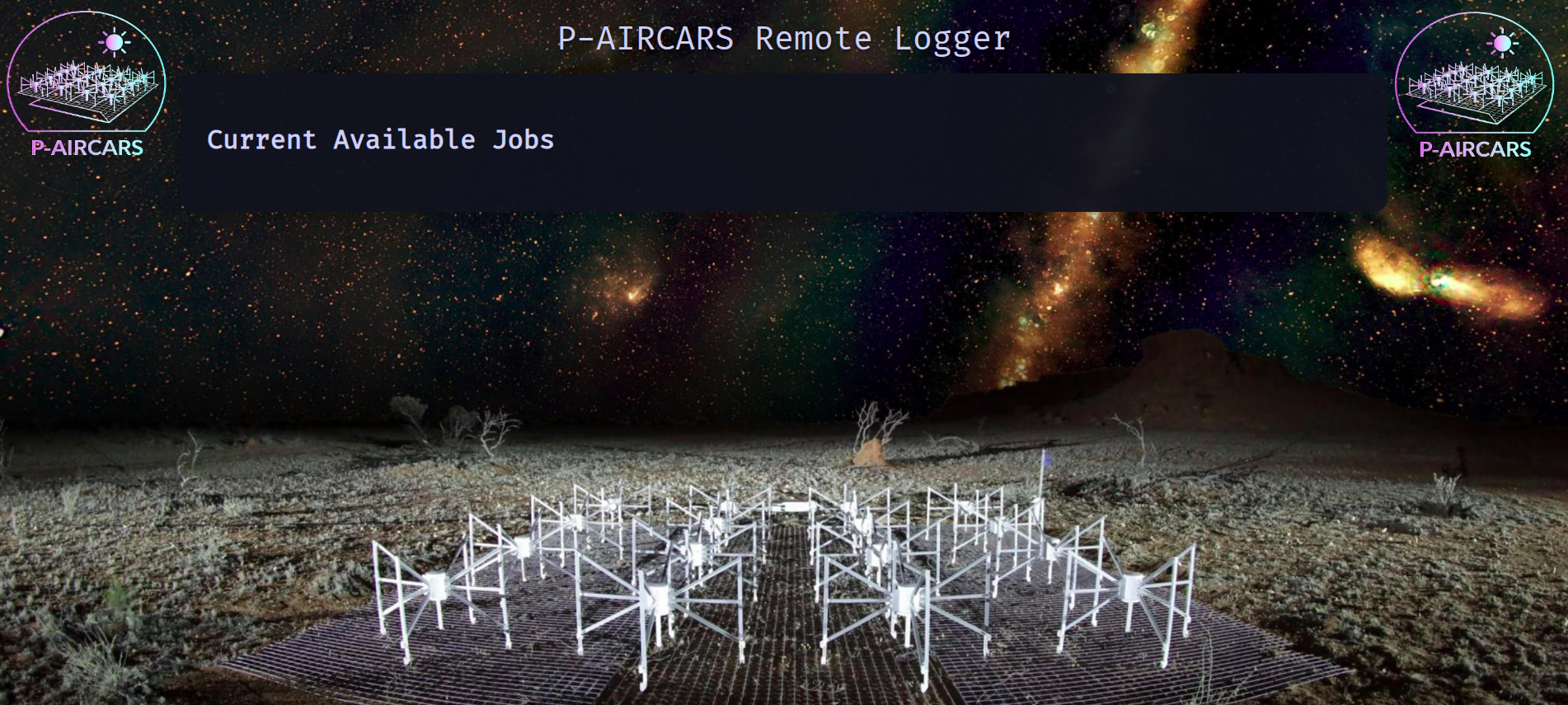
If you have setup remote logger with remote logger link, https://<remote-logger-name>.onrender.com, open this in your browser from any machine. It does not need to be opened from the machine jobs are running. Remote logger looks something like the following.
Getting access keys
To access remote logger, user needs two information; Remote logger job name: <jobname> and remote logger password: <remote_access_password>. Job password can be set by user using --job_password keyword.
On start-up of the P-AIRCARS job and if remote logger is not disable by –no_remote_logger option, you will see:
############################################################################
https://<remote-logger-name>.onrender.com/
Job ID: <jobname>
Remote access password: <remote_access_password>
#############################################################################
Remote <jobname> is of the format: <username>-<hostname>:<YYYY-MM-DDThh:mm:ss>:<target_obsid> for easy identification.
If you setup you e-mail id, you should receive an e-mail on startup of P-AIRCARS job from
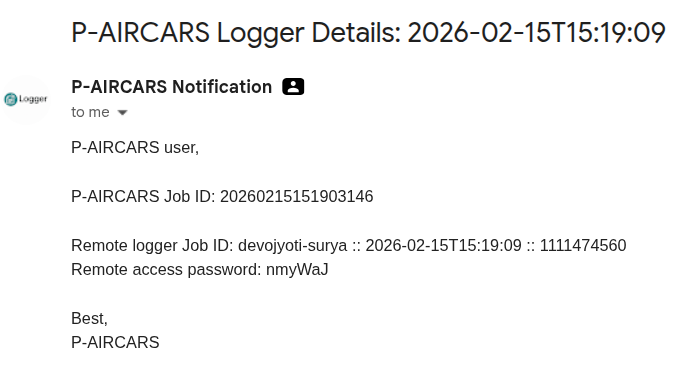
P-AIRCARS Notification. The subject of the e-mail should be :P-AIRCARS Logger Details: <start_time>, where<start_time>will be inYYYY-MM-DDThh:mm:ssformat. The e-mail will contain two information;Remote logger Job ID : <jobname>andRemote access password: <remote_access_password>. Both of these are required to access logs in remote logger. A demo e-mail is shown below:
Using remote logger
The home page of remote logger will show
<jobname>s of all jobs attached to this remote logger. These jobs can be run on different physical machines even in different parts of the world.Click on the
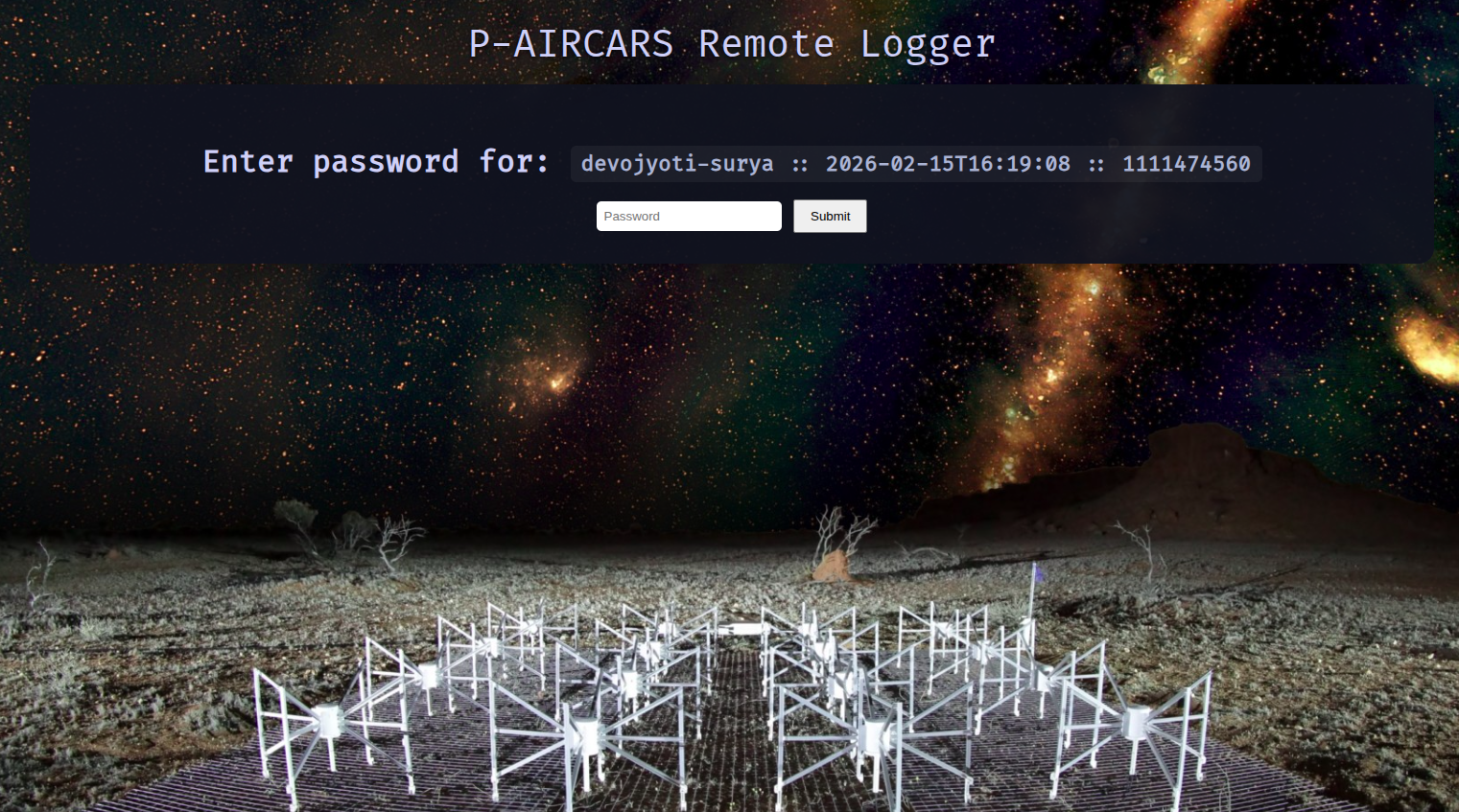
<jobname>user want to see the logs. It will then pop-up a window asking for password. Enter<remote_access_password>linked with that particular<jobname>. If the<jobname>and<remote_access_password>are not matching, logs will be available to the user. This provides privacy and protection if multiple user are using the same remote logger. The password window will be as below. Enter<remote_access_password>and press the Submit button to enter into log page.
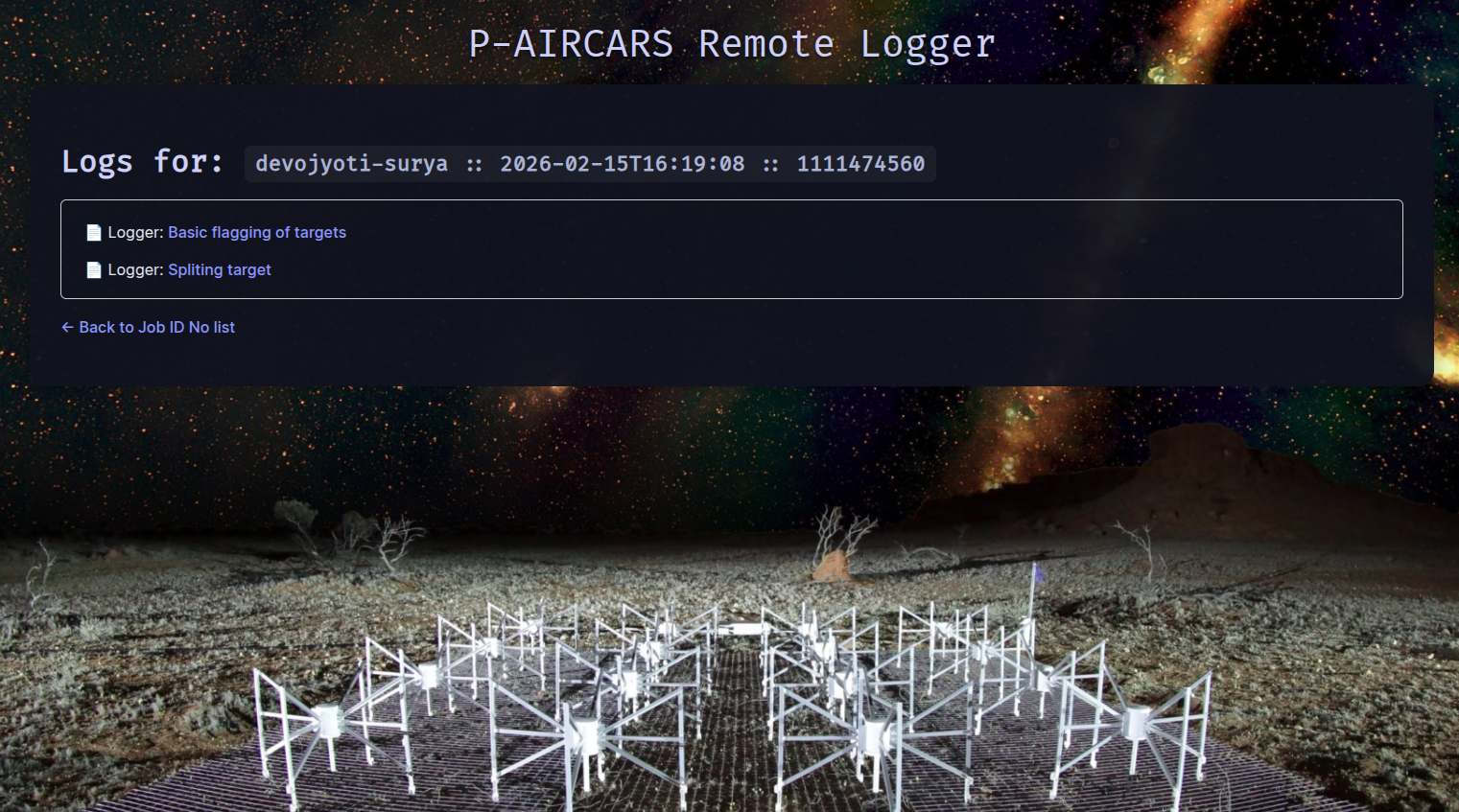
In the log page, different logs are shown. There will be three tabs, Master flows, Subflows, and Tasks. Click the appropriate tab to view the log lists of that category. Logs names are self-explanatory. This list will be updating continuously as jobs are running in the host machine.
Click on any of the logs will take you to the logger window, which will show the live-log and continuously updating as jobs are progressing in the host machine.
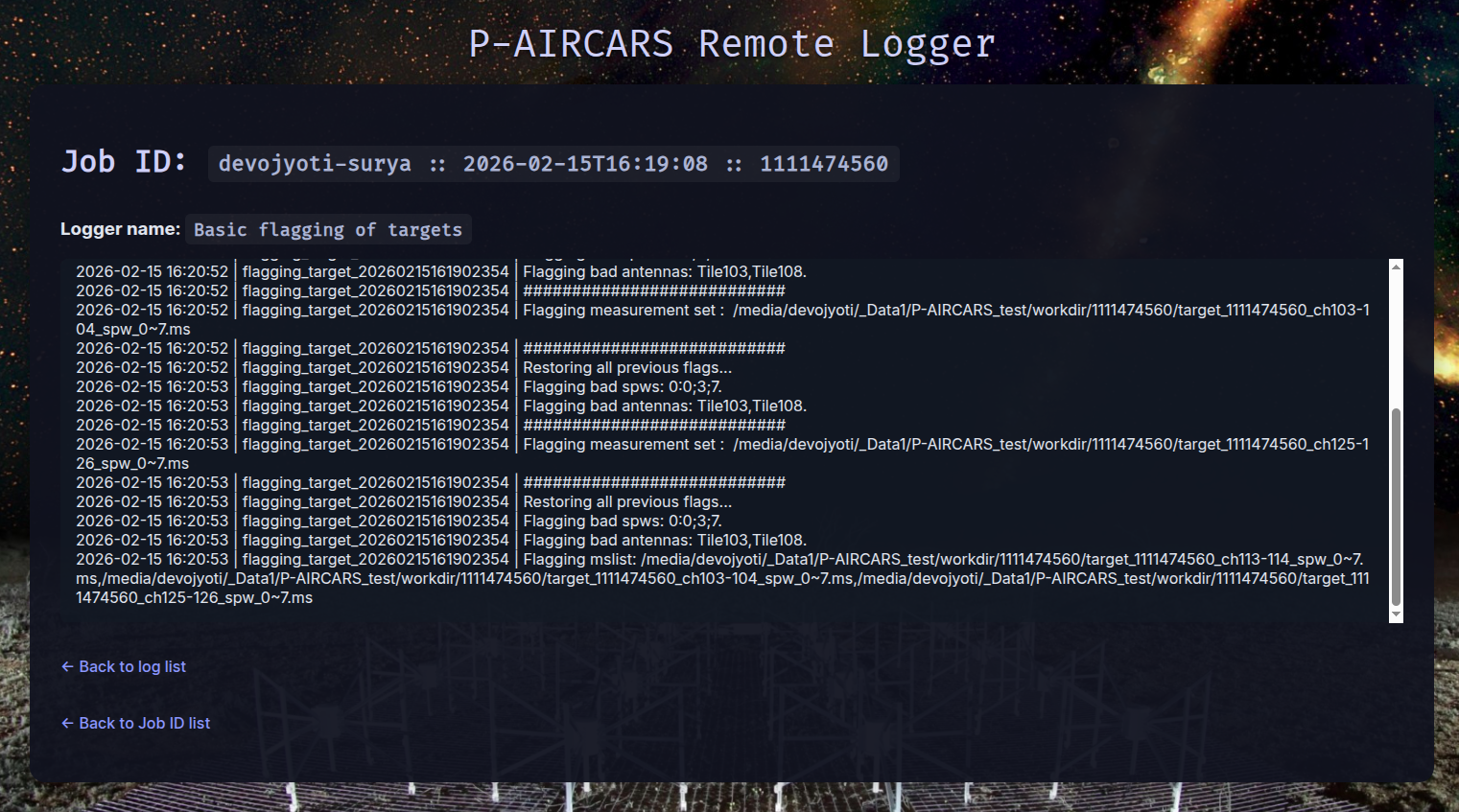
One can use,
Back to log listandBack to Job ID listbuttons to go back to the respective pages. To go back and forth between logs and logger page, user do not need to enter password everytime. However, if user go back to home page and again want to enter into the log page, user needs to enter the password again. This is for added safety.